What is SQL Injection?

0 comments
What is SQL Injection?
Acunetix describes it as ” the type of attack that takes advantage of improper coding of your web applications that allows hacker to inject SQL commands into say a login form to allow them to gain access to the data held within your database. In essence, SQL Injection arises because the fields available for user input allow SQL statements to pass through and query the database directly.” Today in this article, we are going to see login bypass using SQL Injection.
To make it more interesting, I am going to divide this article into two parts. First, the Web Programmer part and second the hacker part. I am going to use Wamp server for this.  Imagine a web programmer  has been hired to code a website for a newly formed company named shunya.  He codes the website as below.The first file is the  index.php.  On this page he creates three buttons. He adds functionality to the ‘Login’ button.
Image
Image
So when a user clicks on the Login button, he is  redirected to  another page called action.php which is a login form for the users of shunya.com.
Image
It’s script is given below.
Image
In the above code notice that the form action is set to process.php. This file validates the users. What this script does is, when a user enters the username and password it creates a connection to the database and checks if the user is in the database. If the user is in the database and his authentication is correct, he is taken to the page login_success.php.
Image
The above script is very important to understand SQL Injection. You can see that the username and password are submitted as raw input. Notice also the query underlined.
This is the database the programmer has created  for the website. 
Image
When a user in the database enters the correct password as shown below, he is redirected to the login_success page.
Image
The page below is the page I set for login_success.php.
Image
When a user not listed in the database, or a valid user logs tries to login without password like below,
Image
this happens.
Image
That’s the end of the programmer part. Now it’s time for the hacker part. A hacker happens to find the site of shunya.com. In the Login form, he inserts a single quote to see if the site is vulnerable to SQL Injection.
Image
He gets a below error message. This indicates the site is vulnerable to SQL Injection.
Image
Then he tries a query like the one shown below.
Image

Surprisingly, he gets access to the restricted area.How does the above query work. When a user enters the above query the statement $sql in the process.php works as,
$sql = “SELECT * FROM $tbl_name WHERE username= ” or ’0;’
This  is a valid  SQL query and user is validated even without checking the password. There are some other queries which can work similarly. Two of them are here.
‘ or ’1′=’1;
‘ or ’1′=’1”
When a hacker enters these two queries, the username field becomes
” or ’1′=’1;
which transforms to validate the user if username is empty or 1=1. Now whatever may happen, one will always be equal to one. We can find many more using trial and error. This vulnerability exists because we are supplying raw data to our application. Our web programmer after a short time finds out this vulnerability and patches it as below.
Image

What the mysql_real_escape_string does is it removes any  special characters from the input. Now try the same queries and see what happens. Thank you.

WPA2 Wi-Fi Password hacking guide (BT5/Kali linux)

0 comments
This guide is for penetration testing your own network or someone else's, with permission
using someone elses wifi is theft of service and may or may not  be a criminal offence in your area
Logan nor anyone from tek syndicate is liable for your actions, you are so proceed with caution!
EDIT; kali linux is now out as logan said on the tek a few weeks back, as kali is built from the same tools by the same team this guide work with both BT5 r3 and kali,

1st step you will need a copy of backtrack 5 so go here http://www.backtrack-linux.org/downloads/
or kali linux from here (guide is same for both) http://www.kali.org/downloads/
and get yourself an iso (32 or 64bit depending on your hardware)
either burn to disc using imgburn http://www.imgburn.com/index.php?act=download
or make a live usb of 4gb + then you can save sessions and not have to start over when you power off, its a good idea as i have had attacks take up to a day and a half (because of weak signal) and with a disc once powered down......
to do this i use this http://www.pendrivelinux.com/universal-usb-installer-easy-as-1-2-3/ itll do windows too....
or as a third option you could run it as a virtual machine with vmware from within windows, but if you do that you HAVE to use a usb wifi dongle because the internal wifi card of laptops gets seen as ethernet by the guest os, dont know why but i have found it to be true - vmware is not freeware, there maybe a trial or cripple ware version available here  http://www.vmware.com/uk/ but i sailed away from the pirate bay with my copy, i wont link directly to it as i may get in trouble from logan but you're a smart guy you can find it ;)
ok so now you have a disc/usb or virtual machine so power on, into BIOS (del,f11,f2 another key depending on hardware) and set it to boot from disc or usb, (not applicable to vm) and lets have some fun!
when the first menu comes up you want default text mode
when the cursor becomes available type "startx" without the quotes and it will boot into a desktop
go to the top of the screen and click on the little black screen to open a teminal (looks like a windows cmd window)
now to find out what wifi adaptor you have
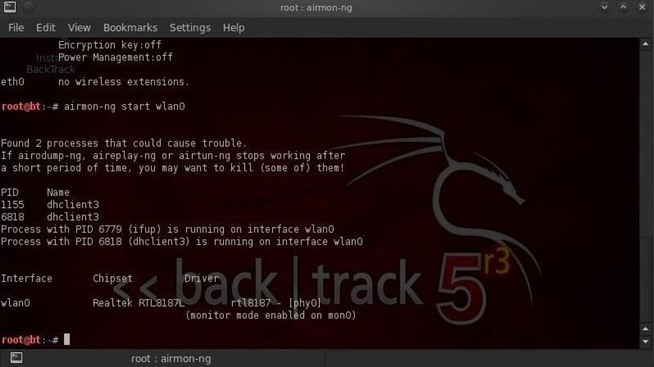
type "airmon-ng" no quotes
if it doesnt list anything then your wifi adaptor is not compatible with bt5 it probably has no promiscuous mode or is lacking driver support but most laptop internal wifi i have found to work and most full size usb dongles do too the tp link tl wn821n works for definate.
the output from that is normally wlan0 but if you have multiple adaptors you will get more options
type "airmon-ng start wlan0"
assuming wlan0 was the output from previous command if not put what the output was for the adaptor you would like to use it will output monitoring enabled on mon0 most times unless you have multiple adaptors
so now we have set our adaptor to monitor the airwaves we can have a snoop at all the available networks
type "wash -i mon0"
and it will list all available networks signal strength encryption type bssid's and other things, we are looking for networks with wpa2/psk WEP is also dooable and much quicker, but as a security standard it is dead and not in common use any more but if you would like a guide for that too, let me know in the thread and when i have a moment.....
anyway choose your victims bssid and
type "reaver -i mon0 -bBSSIDGOESHERE -vv"
and it will start running through the all the possible wps set up pins randomly, it maybe that you get ap rate limiting detected, this is where a router recognises that it is getting attacked from all the wrong passwords and stops bt5 from accessing it rfor a set amount of time to combat this youi need to add a delay -d command to the reaver command line so it looks something  like this
"reaver -i mon0 -b21.34.56.23.54 -d20 -vv"
if ap rate limiting still detected keep increasing the delay by 5 seconds untill you stop tripping the ap rate limit
by using the -vv comand you get more verbose output from the termional wich allows you to see if it is channel hopping or ap rate limiting or whatever and it also lets you see when it gets caught in a loop on a particular password when this happens i press cntrl+c to stop session then up cursor for last command and enter and it picks up where it left off and normally carries on without stuttering on the same password again
after time passes it will output the password and pin number copy both down as if the password is changed you can run the reaver command line again with a -pPINHERE and it will break new password in less than a minit as the pin doesnot change this would look like
"reaver -i mon0 -b23.56.76.45. -p123456 -vv"
the password will get changed if your found on a network you are not supposed to be on wich is why i put that command there as i have had it happen a few times
if this goes on and the network admin is savvy they may stop changing the password and start banning mac addresses from connecting to the router but dont fear!
i use this http://www.technitium.com/ to change my mac address as i have had to deal with this problem before
as a side note, if you are going to jump on a network that isnt yours change your pc name to something not identifiable to you mine is called vm.lineupdate32 as the target network is on virgin media....see?

How To Enable/Disable Write Protection on USB Drive

0 comments

USB Write Protect is a name of software which can enable or remove write protection from removable USB drive.
Interface of this tool consist of three sections: “Enable / Disable Write Protection”, “Lock” and “USB Autorun”.
Enable / Disable Write Protection- After enabling protection, contents from USB drive will be read-only. It means new files cannot be added, existing files cannot be deleted, modified or renamed.
write protection interrupted action USB Write Protection Software: Enable / Disable Writing or Lock USB Drives
This is how dialog box will appear when you try to add new file to write protected USB drive. It reads: Interrupted action- The Disk is write-protected. Remove the write-protection or use another disk.
Lock USB Device- Locking USB Device means device won’t show up on any computer connected. It is total protection mode in which file neither be read nor write.
usb write protect USB Write Protection Software: Enable / Disable Writing or Lock USB Drives

Password Protection

To prevent anyone from using this tool and make changes in your settings, you can set password. Password button is given at the bottom which is used to set password. Once set, tool will prompt for password before opening.
Tool automatically detects removable USB drive connected to computer and enable/disable write protection accordingly. Also, it can detect if there are more than one which makes it possible to lock multiple USB drives in one click.
Note: You will have to right-click on file and “Run as Administrator” to make all the functions work. Once action taken, remove and re-insert Pendrive in computer to see the changes made by USB write protection software.

How to fixing BOOTMGR is missing without install new OS

0 comments
If your Windows 7 or Vista computer has encountered the dreaded “BOOTMGR is missing” error, you aren’t alone. If the problem isn’t hardware related you can fix it with relative ease as long as you have a Windows DVD handy.
If you don’t have one, you can create a Windows Vista repair disk using our guide.
image
Boot off the Windows Vista DVD and then click Next at the first prompt:
You should see a link in the lower left-hand side for “Repair your computer”
The installation process will attempt to find your Vista installation directory. If there’s more than one in the list, select the correct one and then use the Next button again.
Click the first link for “Startup Repair”
The installation process will repair the system, and then prompt for you to reboot.
Alternatively you could have chosen the Command Prompt option instead, and use the following command to fix the boot options only:
bootrec /fixboot
At this point you should be able to reboot your computer, remove the DVD and everything should be working. If not, then head over to our forums and ask your question there. We’ve got some top-notch geeks over there!

Computer Name - Hide or Unhide in Network

0 comments
EXAMPLE: Network window
NOTE: This is where your computer name will be hidden or unhidden from displaying in the other computers on the same network.
network.jpg


OPTION ONE

Using an Elevated Command Prompt
1. Open a elevated command prompt.

2. To Verify and See if your Computer Name is Hidden or Unhidden
A) In the command prompt, type Net Config Server and press Enter. (See screenshots below)

B) If it is hidden, then you will see Yes to the right of Server hidden. (See top screenshot below)

C) If it is unhidden, then you will see No to the right of Server hidden. (See bottom screenshot below)

D) Go to step 3 or 4.
status_hidden.jpg
default_status.jpg
3. To Hide your Computer Name from Displaying in Network
A) In the command prompt, type in bold belowand press Enter. (See screenshot below)
Net config server /hidden:yes
B) You will get a The command completed successfully message afterwards.

C) Go to step 5.
command_hide.jpg
4. To Unhide your Computer Name to Display in Network
A) In the elevated command prompt, type in bold below and press Enter. (See screenshot below)
Net config server /hidden:no
B) You will get a The command completed successfully message afterwards.

C) Go to step 5.
command_unhide.jpg
5. Close the elevated command prompt window.

6. Restart the computer to apply.
NOTE: You can verify the changes in step 2 above.


OPTION TWO

Using a REG File Download
1. To Hide your Computer Name from Displaying in Network
A) Click on the Download button below to download the file below.
Hide_Computer_Name_Network.reg

B) Go to step 3.
2. To Unhide your Computer Name to Display in Network
A) Click on the Download button below to download the file below.
Unhide_Computer_Name_Network.reg

3. Click on Save, and save the .reg file to the Desktop.

4. Right click on the downloaded .reg file and click on Merge.

5. Click on Run, Continue (UAC), Yes, and then OK when prompted.

6. When done, you can delete the downloaded .reg file if you like.

7. Restart the computer to apply changes.
NOTE: You can verify the changes in OPTION ONE (step 2) above.


OPTION THREE

Manually in Registry Editor
1. Open the Start Menu.

2. In the white line (Start Search) area, type regedit and press Enter.

3. Click on Continue in the UAC prompt.

4. In regedit, go to: (See screenshot below step 5)
HKEY_LOCAL_MACHINE\SYSTEM\CurrentControlSet\Services\LanmanServer\Parameters
5. In the right pane, right click on hidden and click on Modify.
NOTE: If hidden is not here, then in the right pane, right click on a empty area and click on New andDWORD (32-bit) Value and type hidden and press Enter.
Click this bar to view the full image.
6. To Unhide your Computer Name to Display in Network
A) Type 0 (number zero) and click on OK or press Enter. (See screenshot below step 7)
NOTE: The registry should look like the screenshot above for unhidden.

B) Go to step 8.
7. To Hide your Computer Name from Displaying in Network
A) Type 1 (number zero) and click on OK or press Enter.
Name:  Modify.jpg
Views: 16282
Size:  30.6 KB
B) The registry will now look like this for hidden. (See screenshot below)
Click this bar to view the full image.
8. Close regedit.

9. Restart the computer to apply changes.
NOTE: You can verify the changes in OPTION ONE (step 2) above.
That's it,
Shawn

Disable Right Click on Image Without JavaScript

0 comments
Some time you have ever worked really hard on graphics for your site only to find later that someone has stolen them as their own. You can help encrypt and protect your site with simple adding code.
There are numerous ways to secure and protect your web site from those who want to steal your content or images.

Some webmasters using JavaScript to disable the right click menu on their websites to prevent people from saving images onto their desktop. Buti now I'll give you a simple way, without javascript or editing HTML code on your Blogger dashboard.

Standard image code sample:
<img src="http://yoursite.com/image.png" />
Add this code after image URL
oncontextmenu="return false;"
Finally your code look like this
<img src="http://yoursite.com/image.png" oncontextmenu="return false;" />

WHMCS Hacking with Sumbit Ticket exploit Tutorial

0 comments
Today we are going to learn, how to Hack WHMCS or you can say its submit ticket exploit ,through which we will we will get the cpanel username and password of hosting panel and website hosted on that whmcs.
lets start
Step 1 
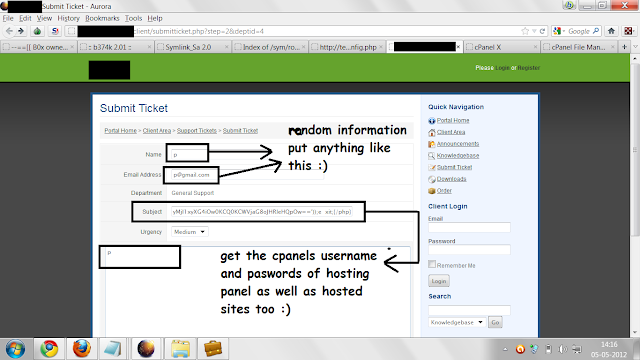
Get a website which provide hosting  and find out the option  " submit ticket"
step 2
now open submit ticket option and click on sales department
st1.png (1366×774)
step 3
now we have to fill the following
info like "name , email address, urgency put any random info is these fields and main thing is subject filed"
st2.png (1366×768)
fill this code in subject field


and scroll down fill the Captcha click the submit button
st3.png (1366×768)

we will be redirected to next page where it will show cpanel username and password
boom ! you have cpanel usernames and passwords of hosting panel,website hosted on that server
if you are lucky , you may also get the FTP and SMTP passwords too !
st5.png (1368×610)

ok it was all about the the cpanel,FTP and SMTP passwords  if whmcs dont have any website hosted on it you wont get anything then ????????
dont be sad :)
we have one more trick and this will help you to upload the shell on whmcs website :)
how ???
lets move :)
come back to the submit ticket page put any random info in email,name and urgency field
 main step is to put the php code in subject field this time we are going to put the php code, if it got executed successfully we will get a uploader on the website through which  we will be able to upload shell on the website so lets start
fill the any random info in other fields and put this php code in subject field


fill the captcha  click enter, now first of all , have a look on the submit ticket url 
for example 
http://www.website.com/client/submitticket.php 
so to get the uploader replace the submitticket.php with downloads/indexx.php
remember its indexx.php,when code will execute , it will create indexx.php and its uploader
so open the url
http://www.website.com/client/downloads/indexx.php
you will see file upload option !
st6.png (1368×768)
browse the shell and click upload  after uploading shell
opn the url
http://www.website.com/client/downloads/shell_name.php
hell yeah
owned :D

Hack Any Password Protected Wi-Fi Network And Use Unlimited Free Internet

2 comments
Today I’ll tell you how do you hack any password protected wifi network with “CommView For Wi-Fi” software.

First you have to know what is Wi-Fi and how dose it work?
"Wi-Fi" is a type of wireless networking protocol that allows devices to communicate without cords or cables.

1: Wi-fi uses antennas around which wi-fi "hotspots" are created. The hotspots are outlets equipped to receive the radio waves that power wireless networking. Until recently, wi-fi has been confined to more than 10,000 hot-spots in cafes, bars and airport lounges. But various projects are under way to set up city-wide zones, where a series of antennas are installed in the streets, on lampposts or street signs. The hotspots around them together create a much wider area of coverage. Norwich has a mesh network which links each lamppost antenna to the next creating a seamless wi-fi hotspot around the center of the city.
2: The source internet connection is provided by a PC or server to which the antennas are connected either wirelessly or via a cable.
3: Some mobile phones and personal digital assistants (PDA) now have wi-fi chips installed. With mobile phones, this means conventional networks can be bypassed and inexpensive long-distance calls made over the web (using Voice over Internet Protocol, VoIP).
4: Many laptops and handheld computers now come with built-in wi-fi connectivity; it is also possible to add wi-fi to your computer with a special card that plugs into a port on your laptop.
Some organizations provide it for free but maximums provide it for business purpose only. And you have to give a password to access this kind of network.
This software price is $1099. Don't worry, I'm giving you for FREE.
Download This Software from HERE. [Mediafire Link]
Note: Please turn off your anti-virus program before you install this software, otherwise this software will not work properly. After completing installing process you can re-run your anti-virus program.
Now follow the Instructions bellow:
1. Install the software and drivers.
2. Click on ‘Rules’ tab and tick on ‘Enable advance rules’ option.
3. Type ‘a’ on Name box and Past this code on formula box “tods=1 and dmac=FF:FF:FF:FF:FF:FF” like picture bellow. Then click ‘add/edit’ button.
4. A window will appear like the picture bellow. Give a tick on ‘a’ .

5. Then go to ‘Settings’ and click ‘Option’
6. Go to ‘Memory Usage’ tab and set everything just like this picture & click ‘Ok’ (Restart may be required).
7.  Check ‘D’ funnel and uncheck another two funnel from the right top of this window.

8. Click ‘Search’ button and find the network that you want to creak.
9. Then drag it on ‘Channel’ tab and click ‘Capture’ button.
10. Now which one is do not capturing anything give it to password protected network and connect it. When it will ask for password, give any as you wish.
11. It will show this massage “Connected with limited connectivity”.
(I have no Wi-Fi connections at this time. that is why, I can’t share some screenshots).
12. Click on main menu again and then click on ‘Packets’ Tab. If everything was all right, you will see some Couple of Packets.
13. Click right button on “ARP REQ”  Packet and then > “Send Packet(s)” > Selected.
14. This menu will appear.
15. Now change all values just like this and click ‘Send’.
16. Go to ‘Rules’ Tab again and uncheck the Rules “a” .
17.  Select first 20000 packets and save it. Make sure you are saving it as “dump cap” file in place of “ncf” file format. (I have no Wi-Fi connections this time, that is why I can’t share some screenshots).
18. Now download a zip folder named “Aircrack-NG” from HERE. And extract it.

19. Open ‘bin’ folder and run this file ‘aircrack-ng-GUI.exe’. Then go where you saved the packets, select all and click launch.

20. An ‘IV’ list will came. Select the network that you want to creak.

21. Click ‘Connect’. You will be connected with your desire network like a magic !

22. Enjoy the Unlimited Wi-Fi Internet.

Also you can do with this software :
 
Done...

Statistik

Powered by Blogger.